Calendar Management: How to Organize Your Schedule and Protect Your Time
Calendar management is the practice of planning, organizing, and protecting your time by deciding what goes on your calendar, when it happens, and what stays off it. Done well, calendar management turns a crowded schedule into a strategic tool: meetings have a purpose, important tasks get real time, and the people who rely on you can book you without a long back and forth.
For founders, executives, and busy professionals, the calendar is often where good intentions go to die. A week fills with internal meetings, client calls, and requests from every direction, and the work that actually moves the business gets pushed to evenings. This guide explains what calendar management is, the habits and calendar management tools that make it work, how executive assistants manage calendars for the leaders they support, and when it makes sense to hand the calendar to a virtual assistant.

What Is Calendar Management?
Calendar management is the ongoing process of scheduling meetings, events, and tasks in a way that reflects your priorities. It covers four jobs:
- Scheduling. Booking meetings, calls, and events at times that work for everyone involved.
- Prioritizing. Deciding which requests deserve time on the calendar and which should be declined, delegated, or handled by email.
- Protecting. Blocking time for deep work, planning, travel, and personal time so the schedule does not consume them.
- Maintaining. Reviewing the calendar daily and weekly, resolving scheduling conflicts, and keeping every entry accurate.
A calendar is not just a list of dates. A well organized calendar is a record of how you are choosing to spend your most limited resource. When calendar management is treated as a discipline rather than an afterthought, it becomes one of the simplest ways to enhance productivity, reduce stress, and make informed decisions about where your time goes. Calendar management is also the practical side of time management: time management is the goal, and the calendar is where you put it into practice.
Why Does Calendar Management Matter?
Poor calendar management shows up in familiar ways: double-booked meetings, back-to-back calls with no time to prepare, missed deadlines, and a to do list that never shrinks. Good calendar management fixes those problems and creates benefits that compound over time.
- Better individual productivity. When your schedule reflects your priorities, you spend more of the day on meaningful work and less time reacting.
- Stronger team productivity. Shared calendars and clear availability reduce wasted time spent coordinating and help teams book meetings quickly.
- Fewer scheduling conflicts. One accurate calendar, kept current, prevents overlapping commitments and late cancellations.
- More reliable client experience. For service businesses, a well-run calendar supports customer success, because the customer success team can see availability, confirm appointments, and respond quickly. Clients get timely meetings, confirmed details, and follow-up that does not slip.
- Professional success over time. Leaders who control their calendars can protect time for strategy, relationships, and growth instead of only putting out fires.
What Is the Best Way to Manage Your Calendar?
The best way to manage your calendar is to combine a few consistent habits with the right tools. These practices work whether you use Google Calendar, Outlook, or Apple Calendar.
1. Keep one source of truth
Use one primary work calendar and connect any other calendars to it. If you keep multiple calendars, such as a work calendar, a personal calendar, and a family calendar, make sure they are visible together so you can see real availability. Many professionals keep separate calendars for different areas of life but overlay them in one view so nothing collides.
2. Schedule priorities first
Before the week fills up, block time for the important tasks that move your goals forward: planning, client work, writing, and selling. Then let meetings fill the time that is left. If priorities only get scheduled after everything else, they rarely get done.
3. Use time blocking
Time blocking means assigning specific time slots to specific types of work. Instead of a loose to do list, each block has a job, such as "proposals 9 to 11" or "email 2 to 2:30." Time blocking turns intentions into appointments and makes it obvious when the day is overcommitted.
4. Group similar tasks
Batch similar tasks together, such as calls, email, approvals, or content review. Grouping similar tasks reduces the cost of switching contexts and cuts down on multi tasking, which tends to slow work down rather than speed it up.
5. Protect deep work and personal time
Block recurring time for deep work and treat it like a meeting with your most important client. Do the same for personal time, such as workouts, family commitments, and breaks. A calendar that only shows meetings tells colleagues you are always available.
6. Add buffers between meetings
Leave 10 to 15 minutes between meetings for notes, follow-up, and preparation. Back-to-back meetings feel efficient but usually push actual work into the evening.
7. Use color coding
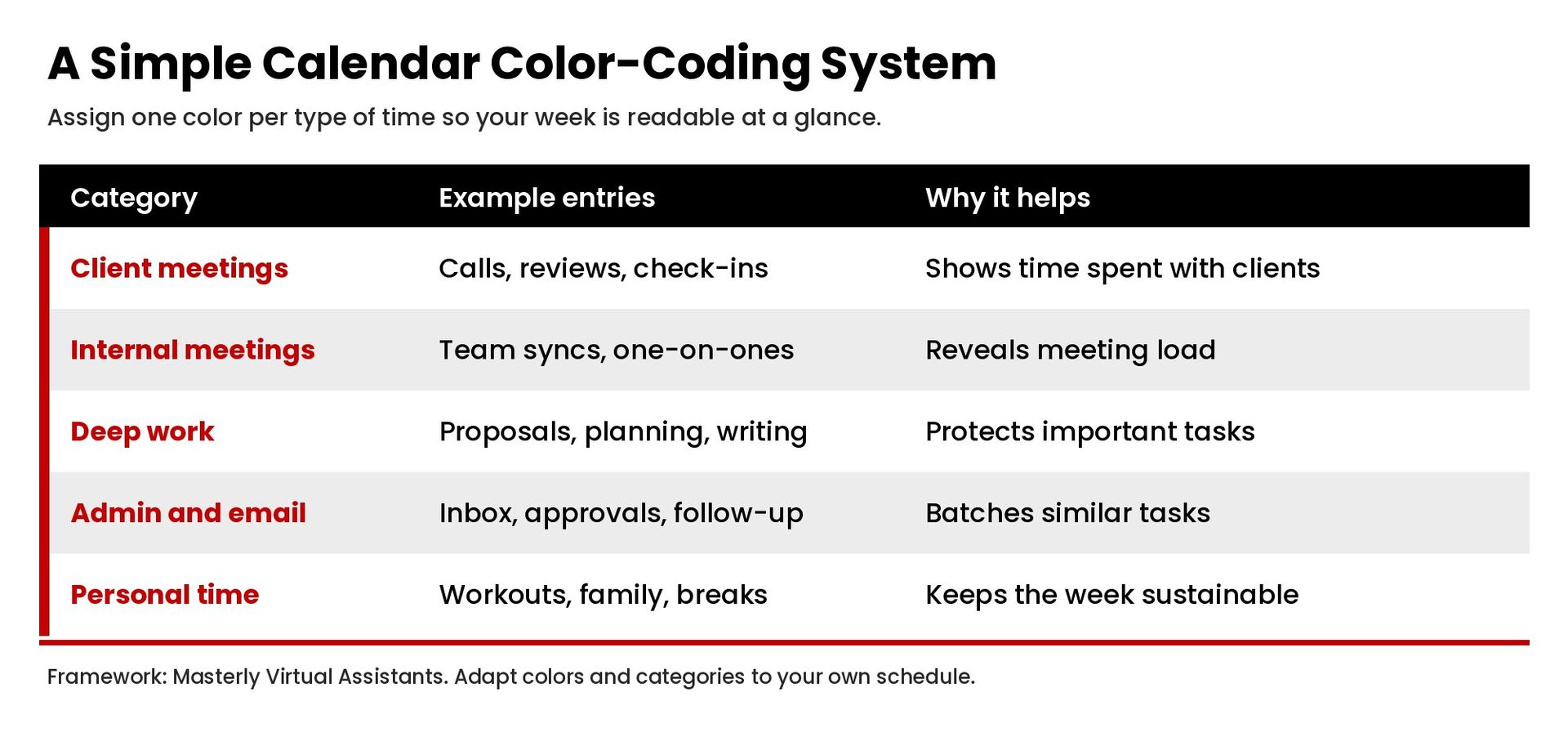
Color coding makes a busy calendar readable at a glance. Assign one color to client meetings, another to internal meetings, another to deep work, and another to personal events. You will see immediately whether your week reflects your priorities.
8. Set meeting rules
Decide in advance which meetings you accept, how long they run, and what they require. For example, internal meetings need an agenda, default to 25 or 50 minutes, and happen only on certain days. Clear rules make it easier to say no and keep other meetings from crowding out the week.
9. Turn tasks into appointments
Tasks that live only on a to do list are easy to postpone. When a task has a deadline, create a calendar entry for the work itself, not just the due date. Breaking large tasks into smaller scheduled sessions makes them easier to start and easier to track. This is one of the simplest productivity enhancement habits, and it helps you improve productivity without working longer hours.
10. Review the calendar daily and weekly
Spend five minutes each evening reviewing tomorrow's meetings, tasks, and appointments and 20 to 30 minutes each week planning the next one. Look at past calendars, too. Reviewing where your time actually went last month shows you which meetings to cut and where your schedule time keeps leaking away.
11. Account for time zones
If you work with clients or teams in different locations, time zones cause many scheduling errors. Google Calendar lets you add a secondary and a tertiary time zone to your calendar grid, according to Google Calendar Help. Showing other time zones makes it easier to schedule time that works for everyone.
What Is the Best Software for Managing Your Calendar?
The best calendar management tools are the ones your team will use consistently. Most businesses build their calendar management on one of three digital calendars, the core calendar management tools for most teams, and add a scheduling tool on top.
Google Calendar
Google Calendar is part of Google Workspace and works well for teams that already use Gmail and Google Meet. You can create multiple calendars, share them with different permission levels, and add video links automatically. Google also offers appointment schedules, which let people book available time from a booking page, as described in Google Calendar Help.
Microsoft Outlook
Outlook is common in organizations that run on Microsoft 365. It supports shared calendars, a scheduling assistant for finding open times, and delegate access, which lets an assistant manage your calendar and respond to meeting requests on your behalf.
Apple Calendar
Apple Calendar is a natural choice for Apple users and syncs across iPhone, iPad, and Mac through iCloud. It can also display Google and Exchange calendars, so it works as a single view for people who manage calendars across accounts.
How to choose calendar management tools
Before you compare calendar management tools, list what your schedule actually requires. A solo consultant may only need one calendar and a booking link. A growing company may need shared calendars, delegate access for assistants, room booking, and reporting on how meeting time is spent. The right calendar management tools should make saving time easy for everyone who books, joins, or manages meetings.
Scheduling tools and other tools
A scheduling tool lets people pick from your open time slots, and the meeting is automatically added to your calendar. This removes the back and forth of email scheduling. Many teams also connect their calendar to project management software so deadlines and milestones appear alongside meetings. When you choose the right tools, look for reliable sync, permission controls, time zone support, and integration with the other tools your team already uses.
How Do Executive Assistants Manage Calendars?
Executive assistants are often the people who have mastered calendar management, because a leader's calendar is one of the most valuable assets an assistant protects. Their approach is worth copying even if you manage your own calendar.
They learn the leader's priorities
An effective assistant starts by understanding what matters most: key clients, revenue goals, board commitments, family obligations, and preferred working hours. Every scheduling decision is made against those priorities.
They use the right access level
Assistants work from shared access rather than shared passwords. In Google Calendar, a calendar owner can choose to let someone see only free/busy, see event details, make changes to events, or make changes and manage sharing, which gives full control of events on the calendar, according to Google Calendar Help. In Outlook, delegate permission levels include Reviewer, Author, and Editor, and a delegate can respond to meeting requests on your behalf, as explained by Microsoft Support. Choosing the right level gives the assistant enough access to do the job without more access than they need.
They manage requests, not just bookings
Assistants screen meeting requests, ask for agendas, suggest shorter meetings, and propose alternatives such as a quick email update. They protect the calendar from meetings that do not need the leader.
They prepare every meeting
Good calendar management includes the details: confirmed attendees, dial-in or video links, addresses, agendas, and relevant documents attached to the event. When a meeting changes, the assistant makes sure the system automatically notifies attendees or follows up directly.
They run a weekly calendar review
Most assistants meet with the leader at least weekly to review the coming days, flag scheduling conflicts, confirm travel, and decide what to move. This short meeting keeps both people aligned and prevents surprises.
Calendar Management for Teams
Calendar management is not only an individual skill. When a whole team manages calendars well, team collaboration improves and fewer hours are lost to coordination.
- Share calendars by default. Shared calendars let colleagues see availability and book meetings without asking. Use free/busy sharing when event details should stay private.
- Create team calendars for important events. Keep launch dates, deadlines, client deliverables, and time off on a shared team calendar so everyone can track what is coming.
- Agree on meeting-free time. Many teams protect one or two blocks each week for focus. Shared focus time makes it easier for everyone to finish large tasks.
- Standardize meeting lengths. Shorter default meetings return time to the schedule and keep discussions focused.
- Use reminders wisely. Calendar reminders help people stay organized, but too many notifications become noise. Set reminders for the appointments and deadlines that truly need them.
These habits are simple, but they add up. Teams that manage their digital calendars together spend less time wasting time on coordination and more time on meaningful work.
Common Calendar Management Mistakes
- Saying yes by default. Accepting every invitation hands control of your schedule to other people.
- Keeping two calendars that do not sync. Separate calendars are fine; calendars that cannot see each other cause double-booking.
- No buffer time. Meetings that run long create a chain of late starts for the rest of the day.
- Vague calendar entries. An event titled "call" with no link, number, or agenda wastes time when it starts.
- Ignoring the review. Without a weekly review, the calendar drifts away from your goals within a few weeks.
When Should You Delegate Calendar Management?
Calendar management is one of the first tasks many founders and executives delegate. Consider handing it to an assistant when:
- You spend more than a few hours a week scheduling, rescheduling, and confirming meetings.
- Scheduling conflicts or missed details are affecting clients.
- You manage multiple calendars across businesses, teams, or time zones.
- Your daily tasks crowd out strategic work only you can do.
Delegating works best with clear rules: your priorities, preferred meeting times, protected blocks, the meetings you always accept, and the ones that need your approval. Document those rules once and review them as your schedule changes.
A virtual assistant can handle calendar management remotely, using the delegate or sharing tools built into the calendar you already use. To see how virtual support fits into daily operations, read about administrative support, executive assistance, and how a skilled virtual assistant strengthens business operations.
Frequently Asked Questions
What is calendar management?
Calendar management is the process of scheduling, prioritizing, protecting, and maintaining your time on a calendar so your meetings, events, and tasks reflect your priorities.
What is the best way to manage my calendar?
Keep one source of truth, schedule priorities first, use time blocking and color coding, add buffers between meetings, and review your calendar daily and weekly.
What is the best software for managing my calendar?
Google Calendar, Microsoft Outlook, and Apple Calendar are the most common choices. The best option is usually the one that matches the email and productivity system your team already uses, paired with a scheduling tool if you book many external meetings.
How do executive assistants manage calendars?
They learn the leader's priorities, work through shared or delegate access, screen meeting requests, prepare each meeting with the right details, and run a weekly review with the leader.
Take Back Your Calendar
Calendar management is not about filling every hour of your business day or your life. It is about making sure the hours you have go to the work, clients, and people that matter most. Start with one change this week, such as a weekly review or protected deep work blocks, and build from there. If you would rather have a dedicated assistant manage your calendar, contact Masterly Virtual Assistants to talk through what support would look like for your schedule.