Inbox Management: How to Organize Email and Stay in Control
Inbox management is the practice of organizing, prioritizing, and processing email so important messages get a timely response and everything else is filed, delegated, or deleted. A managed inbox is not necessarily an empty one. It is an inbox where you know what needs your attention, what is waiting on someone else, and what can safely wait.
For business owners and executives, email inbox management has a direct cost. Every unread message is a small decision waiting to be made, and hundreds of them create decision fatigue that pulls focus away from clients, team, and strategy. This guide covers what inbox management is, a simple system to organize your inbox, the tools that do the heavy lifting, and how executive assistants and virtual assistants manage email for the leaders they support.

What Is Inbox Management?
Inbox management is a repeatable system for handling incoming email. It answers four questions for every message:
- Does this matter? If not, delete it, archive it, or unsubscribe.
- Is it mine to handle? If someone else should respond, delegate or forward it with clear context.
- Can I finish it quickly? If a response takes a couple of minutes, respond now.
- Does it need more time? If so, turn it into a task, schedule it, and file the message.
Good inbox management helps you organize your inbox around your priorities. It is less about software and more about a consistent process. The tools, such as labels, folders, filters, and rules, simply make that process faster.
Why Does Email Inbox Management Matter for Your Business?
Email is still where clients, customers, vendors, and team members send requests, documents, and decisions. When the inbox is out of control, the business feels it.
- Missed opportunities. Client requests and urgent issues get buried under newsletters and notifications.
- Slower responses. Customers and clients wait longer for answers, which affects support quality and trust.
- Lost follow ups. Conversations stall because no one tracks which replies are still waiting.
- Decision fatigue. Constantly scanning an overwhelming inbox drains the attention you need for higher-value work.
- Hours lost. Checking email throughout the day breaks focus and makes every other task take longer.
A clear inbox management system helps you organize email, prioritize your day, improve efficiency, respond to what matters, and spend less time on email overall.
What Is the Best Way to Manage Your Inbox?
The best way to manage your inbox is to process email in scheduled blocks, make one decision per message, and let filters and rules handle the routine work. These steps work in Gmail, Outlook, and most other email platforms.
1. Set specific times to check email
Instead of reacting to every notification, process email at set times, such as mid-morning, after lunch, and late afternoon. Turn off desktop and phone notifications outside those blocks, or limit them to messages from priority contacts. Scheduled processing protects your focus and still keeps response times reasonable for clients and team members.
2. Make one decision per message
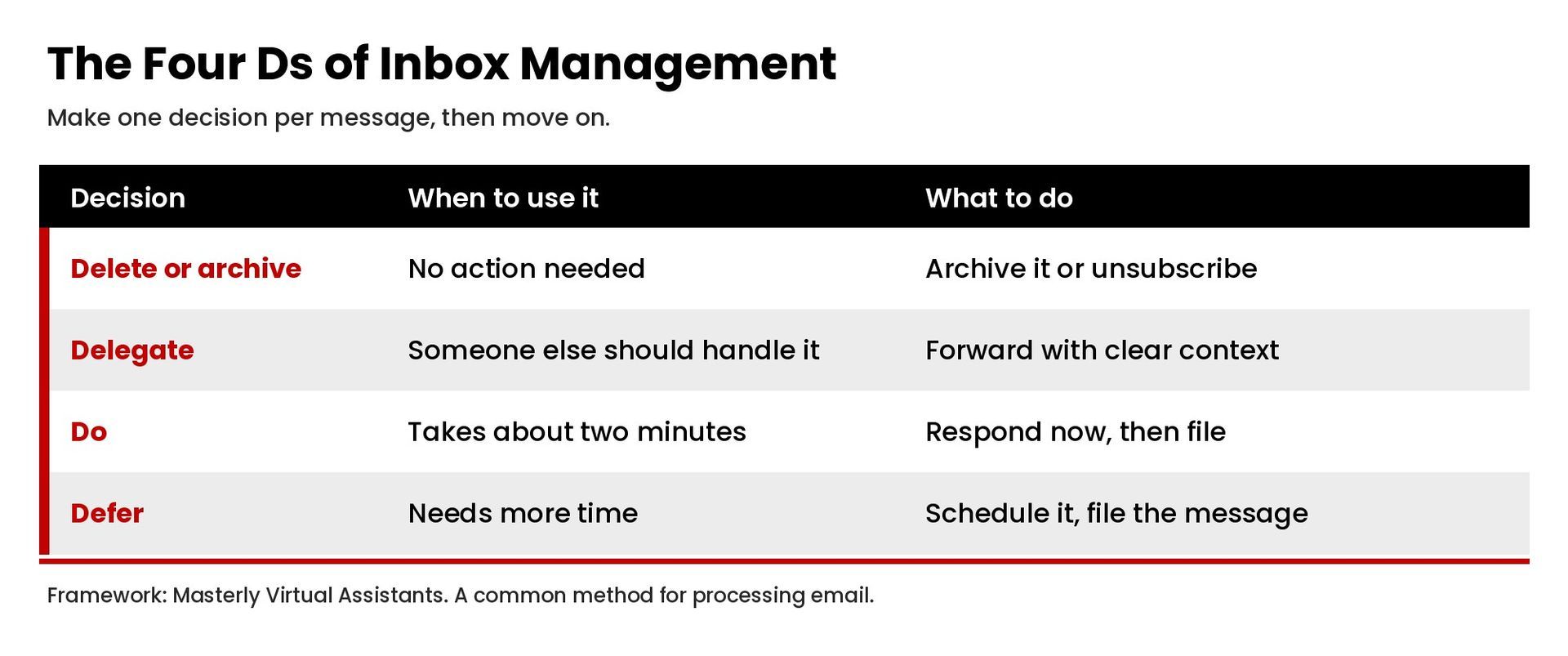
When you open a message, decide what to do with it right away. A common approach is the four Ds:
- Delete or archive messages that need no action.
- Delegate messages someone else should handle.
- Do anything that takes about two minutes or less.
- Defer larger items by adding them to your to do list or calendar, then file the message.
Opening a message and leaving it for later is what makes an inbox overwhelming. One decision per message keeps the inbox moving.
3. Use a small set of folders or labels
Too many folders make filing slow and searching harder. Most professionals only need a few, such as:
- Action: messages that require your response or a task.
- Waiting: messages where you are waiting on someone else.
- Reference: documents, reports, and information to keep.
- Read later: newsletters and updates you want to review once a week.
In Gmail, labels work like folders, and one message can carry more than one label, as described in Gmail Help. Outlook uses folders and color categories for the same job.
4. Automate with filters and rules
Filters and rules sort email before you ever see it. Gmail filters can send messages to a label, archive, delete, star, or forward them automatically, according to Gmail Help. Outlook offers rules that move, flag, and respond to messages based on conditions you set. Start with simple automation:
- Route receipts and invoices to a finance label or folder.
- Send newsletters to a read later folder.
- Flag messages from top clients and key team members.
- Move automated notifications and reports out of the main inbox.
5. Separate important messages from the rest
Use built-in prioritization so important messages stand out. Outlook's Focused Inbox separates the inbox into Focused and Other tabs, placing the messages you are most likely to act on in Focused. Gmail offers inbox categories and a priority inbox view. Either way, the goal is the same: the messages that matter most should be the first ones you see.
6. Unsubscribe and reduce clutter
Much of the clutter in a business inbox comes from newsletters, promotions, and notifications you no longer read. Once a week, unsubscribe from anything you have not opened in a month and turn off notifications from tools that already alert you elsewhere. Every subscription you cut is one less message to process every week.
7. Track follow ups
The messages that cause the most damage are often the ones waiting on someone else. Keep a waiting folder or label, and review it a few times a week. If a reply is overdue, send a short follow up with clear context so the recipient can respond quickly.
8. Use templates for repeat responses
If you answer the same questions repeatedly, such as scheduling requests, pricing inquiries, or onboarding steps, save responses as templates. Templates save time, keep communication consistent, and make it easier to delegate those responses later.
Inbox Management for Teams and Shared Inboxes
Many companies run shared inboxes, such as info@, support@, or sales@, where customers and prospects send questions. Shared inboxes need extra organization because several team members can see the same conversations.
- Assign clear ownership. Every customer conversation needs one owner. When ownership is unclear, team members assume someone else is responding and the customer waits.
- Use labels or tags for status. Mark conversations as new, in progress, waiting on the customer, or resolved so the team can see the status of every message at a glance.
- Set response targets. Decide how quickly the team should respond to customers and support requests, and have a manager review the shared inbox daily to catch anything that might drop.
- Route by topic. Use rules to send billing, project, and support messages to the right team member automatically.
- Leave internal comments, not reply-all chains. Where your platform allows it, discuss a customer message internally rather than adding more email to the thread.
A shared inbox with clear ownership helps the whole team prioritize customers, respond faster, and keep conversations from slipping through the cracks.
How to Organize Your Inbox: An Example System
Here is an example of a simple system that most professionals can set up in under an hour:
- Create four labels or folders: Action, Waiting, Reference, and Read later.
- Create filters for receipts, newsletters, and automated reports.
- Block three 30-minute email sessions on your calendar each day.
- In each session, process every new message once using the four Ds.
- Once a week, review the Waiting folder, unsubscribe from clutter, and clear junk and spam.
The point is not a perfect system. It is a plan you will follow every day. If an idea does not stick after two weeks, simplify it.
What Is the Fastest Way to Clean Up Your Email Inbox?
If your inbox already holds thousands of messages, do not try to process them one by one. Clean it up in stages:
- Archive everything older than 30 to 60 days. Archived messages remain searchable, so nothing is lost.
- Search by sender for bulk mail. Select and archive or delete newsletters, promotions, and notifications in batches.
- Unsubscribe as you go. Remove the sources of clutter so the inbox does not refill.
- Process what remains. Apply the four Ds to the recent messages that are left.
- Set up filters. Prevent the same clutter from returning.
Most people can get from an overwhelming inbox to a manageable one in a single focused session using this approach.
How Do You View All Emails in Your Inbox?
In Gmail, you can see archived messages, and every message in your account, in the All Mail view. Outlook lets you search across all folders. If you use inbox categories or a Focused Inbox, remember that some messages may sit in other tabs, so check those tabs during each scheduled email block.
How Do Executive Assistants Manage Email?
Many leaders hand inbox management to an executive assistant or virtual assistant. Assistants use the same principles, with a few practices that make delegation work.
They work through delegated access
Rather than sharing passwords, assistants work through the delegation tools built into the email platform. In Gmail, a delegate can read, send, and delete emails in your account for you, and messages a delegate sends show their email address, according to Gmail Help. Outlook offers delegate permissions as well. Delegated access keeps the account secure and leaves a clear record of who did what.
They learn communication preferences
An effective assistant learns which clients, team members, and topics the leader wants to see personally, how quickly different types of messages need a response, and the tone the leader prefers. Those communication preferences become the rules the assistant follows every day.
They triage, respond, and summarize
A typical daily routine looks like this:
- Process new messages and file or archive anything that needs no action.
- Respond to routine requests using approved templates.
- Flag urgent issues for the leader immediately.
- Track follow ups and nudge people when replies are overdue.
- Send the leader a short daily summary of what needs a decision.
The leader stays informed without spending hours in the inbox, and productivity improves for both the leader and the team. Instead of reading hundreds of messages, they review a short list of decisions.
They connect email to the calendar and task list
Email often contains meeting requests, documents, and deadlines. Assistants move those items into the calendar and task system so nothing depends on someone remembering an email. Our guide to calendar management covers how assistants manage the schedule side of that work.
What to look for when hiring an assistant for email
When hiring assistants to manage email, look for clear written communication, sound judgment about what to escalate, comfort with your email platform, and discretion with confidential client information. A short trial period with documented rules is the easiest way to see whether the fit works. Good assistants will also suggest ways to fix recurring problems, such as a new filter or template, so the inbox becomes easier to manage over time.
Common Inbox Management Mistakes
- Using the inbox as a to do list. Messages that need action should become tasks, then leave the inbox.
- Checking email constantly. Constant checking feels responsive but fragments the entire workday.
- Creating too many folders. Complex systems are hard to maintain and slow down filing.
- Ignoring automation. Manual sorting of predictable messages wastes time a filter could save.
- Delegating without context. Forwarding a message with no instructions creates more back and forth.
When Should You Delegate Inbox Management?
Consider delegating email inbox management when:
- You spend more than an hour or two a day processing email.
- Client or customer responses are slipping because of volume.
- Routine requests, scheduling, and follow ups take time away from work only you can do.
- Your team is waiting on you for answers that could be handled with clear guidelines.
Start by documenting your rules: who gets a personal response, what an assistant can answer, which templates to use, and how urgent issues reach you. Then give access through your email platform's delegation tools and review the system together after the first few weeks.
To see how assistants support daily communications, read about client communication and support, administrative support, and executive assistance.
Frequently Asked Questions
What is inbox management?
Inbox management is a system for organizing, prioritizing, and processing email so important messages get a timely response and the rest are filed, delegated, or deleted.
What is the best way to manage my inbox?
Process email at scheduled times, make one decision per message, use a small set of folders or labels, automate sorting with filters and rules, and track follow ups in a dedicated folder.
What is the fastest way to clean up my email inbox?
Archive older messages in bulk, delete or archive newsletters and notifications by sender, unsubscribe from what you no longer read, then process the recent messages that remain.
Can a virtual assistant manage my email?
Yes. With delegated access and clear rules, an assistant can triage messages, respond to routine requests, track follow ups, and flag what needs your decision.
Make Email Work for You
Inbox management is not about reaching zero every day or reading every message the moment it arrives. It is about knowing what matters, responding on time, and keeping email from running your schedule. Pick one change this week, such as scheduled email blocks or three simple filters, and build the system from there. If you would rather have an assistant handle your inbox, contact Masterly Virtual Assistants to talk through what support would look like for your business.